
Accountants and shop owners send us both halves of this problem weekly: the spreadsheet that became a three-page puzzle, and the PDF somebody now has to retype. Here are both workflows, done properly.
Why spreadsheet-to-PDF goes wrong
A spreadsheet is a grid of cells with invisible structure. A PDF page is a fixed sheet of paper. Export carelessly and the export decides where to break your columns: a 14-column budget gets sliced across three pages and the totals drift off alone.
Workflow 1: Spreadsheet - clean PDF






The Excel / CSV to PDF tool renders your sheet as a tidy, formatted table document:
- Open the tool and drop your .xlsx or .csv.
- It parses the sheet and lays the rows out as a proper table on an A4 page — no chopped columns, no floating totals.
- Download the PDF and check the row count. Very wide or very long sheets may need a second pass with fewer columns.
Good habits before converting:
- Trim to what the recipient needs. Hide or delete helper columns first.
- Put headers in row 1. Readability depends on it.
- One table per sheet. Three stacked tables on one sheet should be three files.
- Round display values. A cell showing 2,000.00 naira prints better than one showing 2000.0000000001 that cell formatting was hiding.
Workflow 2: PDF - back to numbers
The opposite trip matters just as much: someone sends a PDF report and you need the figures in Excel. Copy-paste from a PDF viewer gives you glued text. The PDF to Excel tool does it properly:
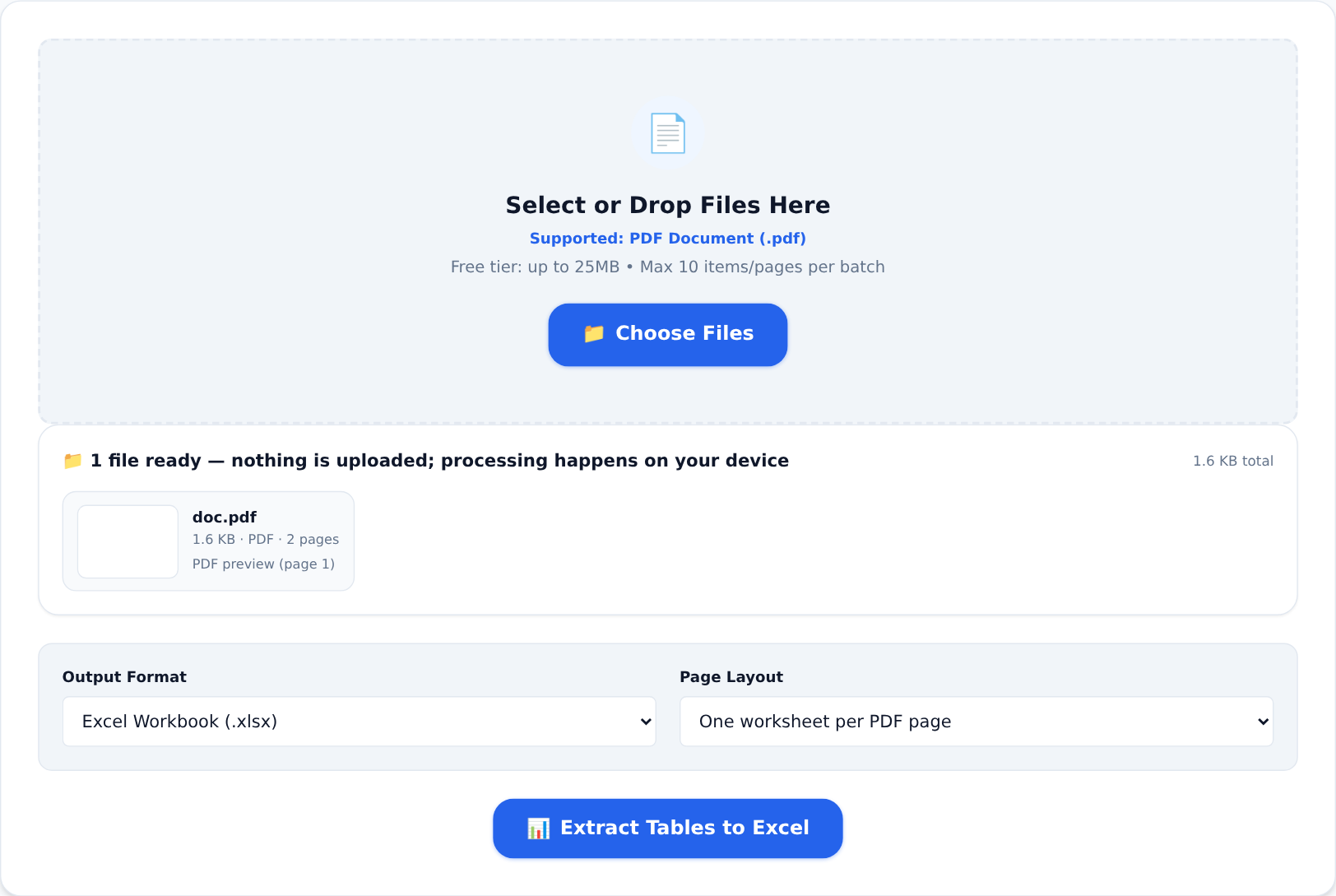
- Drop the PDF into the tool.
- It reads each page's text geometry — where every word actually sits — and reconstructs rows and columns from those positions.
- Choose one worksheet per page or a single stacked sheet, and download as .xlsx or .csv.
The reconstruction is positional, so it handles real column layouts — and numeric-looking values like "1,200" or "45,000 naira" are typed as actual numbers, so Excel can sum and sort them immediately.
What converts well: clean grids — reports, invoices, statements, price lists. What needs touch-ups: merged cells, nested headers and heavily designed layouts may need a quick tidy after conversion. That is a formatting pass, not a failure.
The round-trip habit
Excel to PDF for presenting, PDF to Excel for working. Keep the spreadsheet as the living master, generate PDFs for sending, and recover tables from received PDFs instead of retyping them. Both tools run in your browser, so the financial data in these files never touches a server — which, for a document full of transaction rows, is the feature that matters most.