
A lawyer friend once spent an evening retyping a 12-page scanned agreement because she did not know OCR existed. That evening is the reason this guide exists.
The problem with scans
Scan a contract and what you get is not a document — it is a photo of a document. To you it looks like text. To a computer it is a grid of coloured dots with no more meaning than a holiday snapshot. That is why you cannot search a scanned PDF for a name, copy a clause into an email, or have a reader app pronounce it. The words are pictures of words.
What OCR actually does
Optical Character Recognition looks at those dots and recognises letter shapes. Modern OCR works in stages: it straightens the page, finds blocks of text, splits them into lines and words, matches each mark against known character shapes, and assembles real digital text. It is pattern matching refined over decades — good enough that for a clean scan it feels like magic.





Running OCR on KiaKia Tools
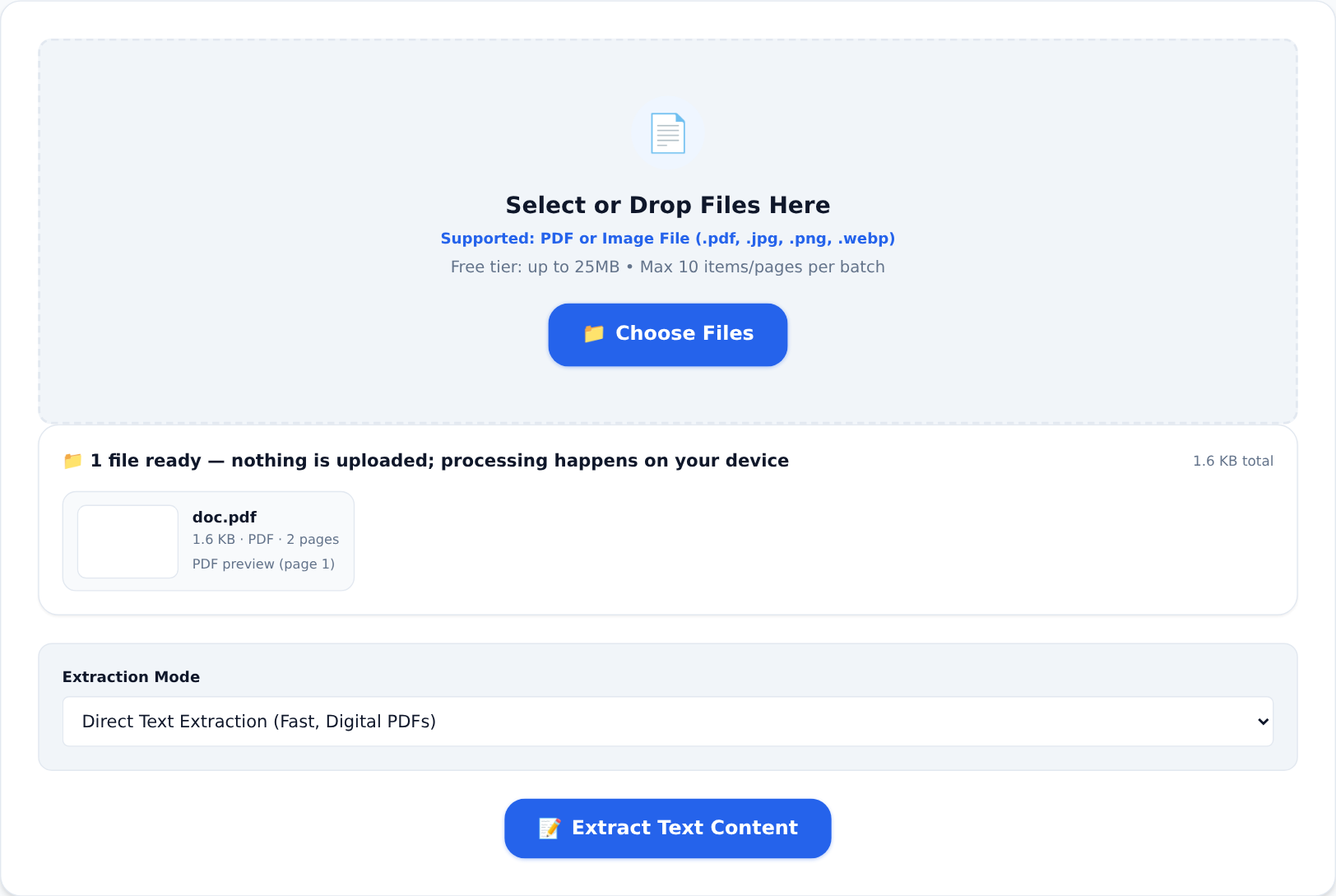
Two tools, both running the Tesseract OCR engine inside your browser (the pages never leave your device):
- PDF to Text — for scanned PDFs. Open the tool, pick the file, and choose the Tesseract.js OCR Scan mode (the fast direct mode only works on PDFs that already contain text). Free-tier OCR processes up to the first 10 pages per document.
- Image to Text — for loose photos, screenshots and single scanned pages. Drop the image in, get the text out.
Getting good results
OCR quality follows scan quality. A few habits separate 99% accuracy from word soup:
- Straight and flat. Skewed pages, curved book edges and shadows from phone cameras are the top accuracy killers. Rescan flat if you can.
- 300 DPI is the sweet spot. Lower loses thin letters; higher just makes big files without helping recognition.
- Black text on white paper beats photos of screens, glare, and pen marks over print.
- Proofread names and numbers. OCR is excellent at words in context and weakest exactly where mistakes are expensive: figures, account numbers, uncommon names. Check those by eye, every time.
What to do with the text
The output is plain text, page by page. From there: paste the relevant part into an email, tidy it into a fresh document with Word to PDF, check length with the Word & Character Counter, or compare a retyped version against the original with the Text & Code Diff Checker. The scan becomes material you can actually work with.
When OCR is the wrong tool
If you need the appearance of the scan preserved — signatures, stamps, layout — keep the PDF as-is and treat OCR as an extra, not a replacement. And for heavy tables, expect to rebuild the grid yourself: OCR reads table text, but flat text output loses the columns.
Ten pages of an old paper archive, converted in your browser without a single byte leaving your machine — that is a genuinely useful trick to know.