
Every few months a company publishes a "redacted" report, and someone on the internet selects the blacked-out text with a mouse, copies it, and pastes the secret into public view. It keeps happening because of one misunderstanding: drawing a black rectangle on top of text in a PDF covers the text — it does not remove it. The words are still in the file, one click away from exposure.
What real redaction means
Genuine redaction deletes the underlying content, not just its appearance. After a proper redaction:
- selecting or copying where the box sits yields nothing, because there is nothing there;
- searching the file for the removed word finds no match;
- converting the PDF to another format cannot resurrect the text.
If a redaction workflow cannot pass those three checks, it is a black box, not a redaction.





Doing it with Redact PDF
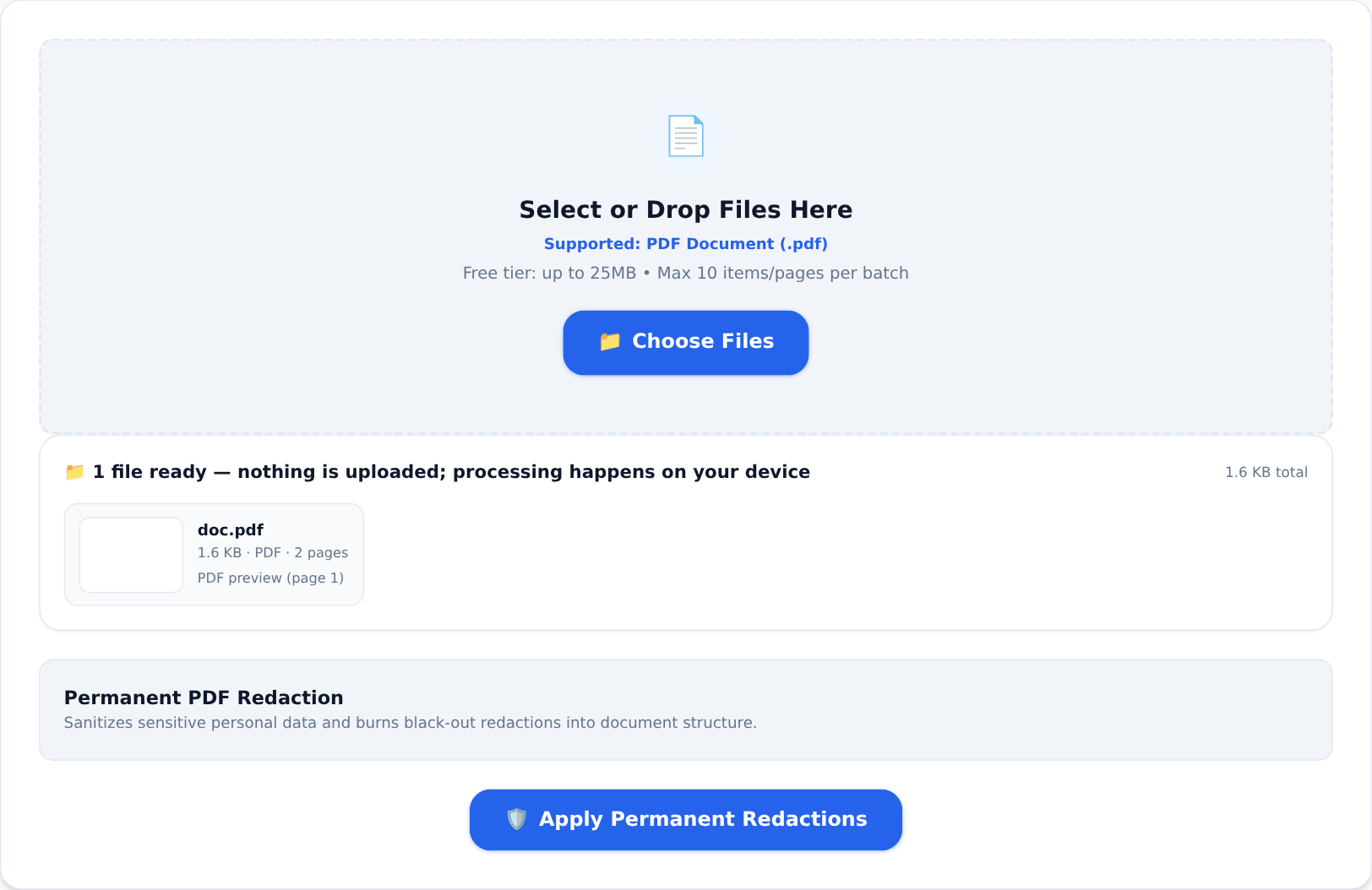
The Redact PDF tool rewrites the document structure so sensitive content is burned out of the file — not painted over. It also sanitises the hidden personal data that leaks through file properties:
- Open the tool and load the PDF. The tool detects and blacks out sensitive patterns (names, numbers, addresses) and burns the redactions permanently into the document.
- Review the result page by page — you know your document; confirm nothing sensitive was missed.
- Verify before sharing (the step everyone skips): re-open the output, try to select and copy inside every redacted area, and search the file for one of the words you removed. No results means it worked.
And because it runs entirely in your browser, the sensitive document never travels to any server.
A pre-flight checklist for sensitive documents
- Metadata leaks too. Author names, revision history and comments live in the file's properties. Run Edit PDF Metadata before publishing.
- Scans remember. A photographed page can show text through thin paper from the reverse side. Re-scan with a blank sheet behind the page if the back contains data.
- Headers, footers, page numbers sometimes repeat sensitive information on every page — check the pattern, not just one spot.
- Attachments. PDFs can carry embedded files. Use Split PDF to send only the pages that matter.
- Keep the original. Redaction is permanent — that is the point. Store the unredacted master safely for your own records.
Thirty seconds of verification beats a data breach. Copy-test before you send, every time.