
We built the Compress PDF tool after a user told us his bank's app kept rejecting a scanned statement that was 38 MB. The scan was fine — it was just stored carelessly. Here is what we explained to him, written out properly.
Why PDFs get so big
A PDF is a container. Inside that container sits everything the document needs: images, embedded fonts, scanned page pictures, form data, and sometimes attachments you did not even know were there. When a "one-page letter" weighs 40 MB, it is almost never the text — text is tiny. It is one or more images stored at full camera resolution, or a scan saved at a quality setting far higher than any screen can show.
That explains why some PDFs shrink beautifully and others barely move:



- Scanned documents (each page is a photograph) usually compress dramatically, because scans are stored with huge amounts of redundant image data.
- Documents from Word or design tools compress moderately — the images inside them get re-encoded more efficiently.
- Already-optimised PDFs have little fat left to trim. No tool can honestly promise to shrink everything.
What compression actually does
Compression does not delete your content. It re-encodes the heavy parts — mainly images — using smarter maths that stores the same visual information in fewer bytes. Aggressive settings also downsample images to screen resolution, which is invisible on a laptop but matters if the file will be professionally printed.
How to shrink one on KiaKia Tools
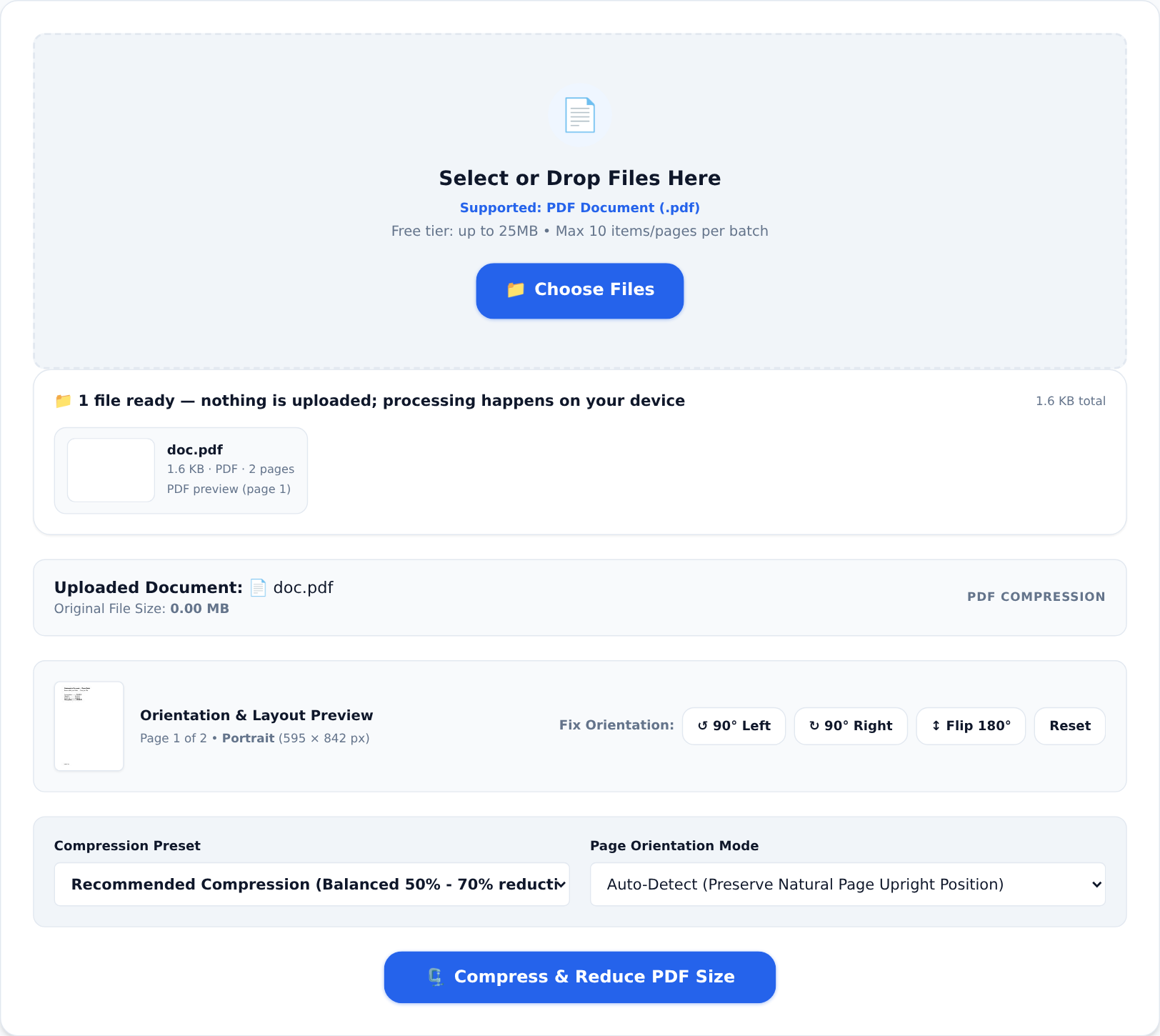
- Open the Compress PDF tool and drop your file in. It stays on your device — the file is never uploaded anywhere.
- Pick a compression preset. Start with the recommended balanced option; only go aggressive if the result must fit a strict limit.
- Process, then open the result and actually look at it. Zoom into the pages that matter. If images look acceptable, you are done.
The free tier handles files up to 25 MB with a daily allowance per tool — enough for the occasional document. If you process files all day, the Pro plans remove those caps.
A five-point checklist before you send
- Check the page count did not change. Good compression never drops pages.
- Zoom to 200% on the most detailed page. If text and logos still look crisp, the file is safe to send.
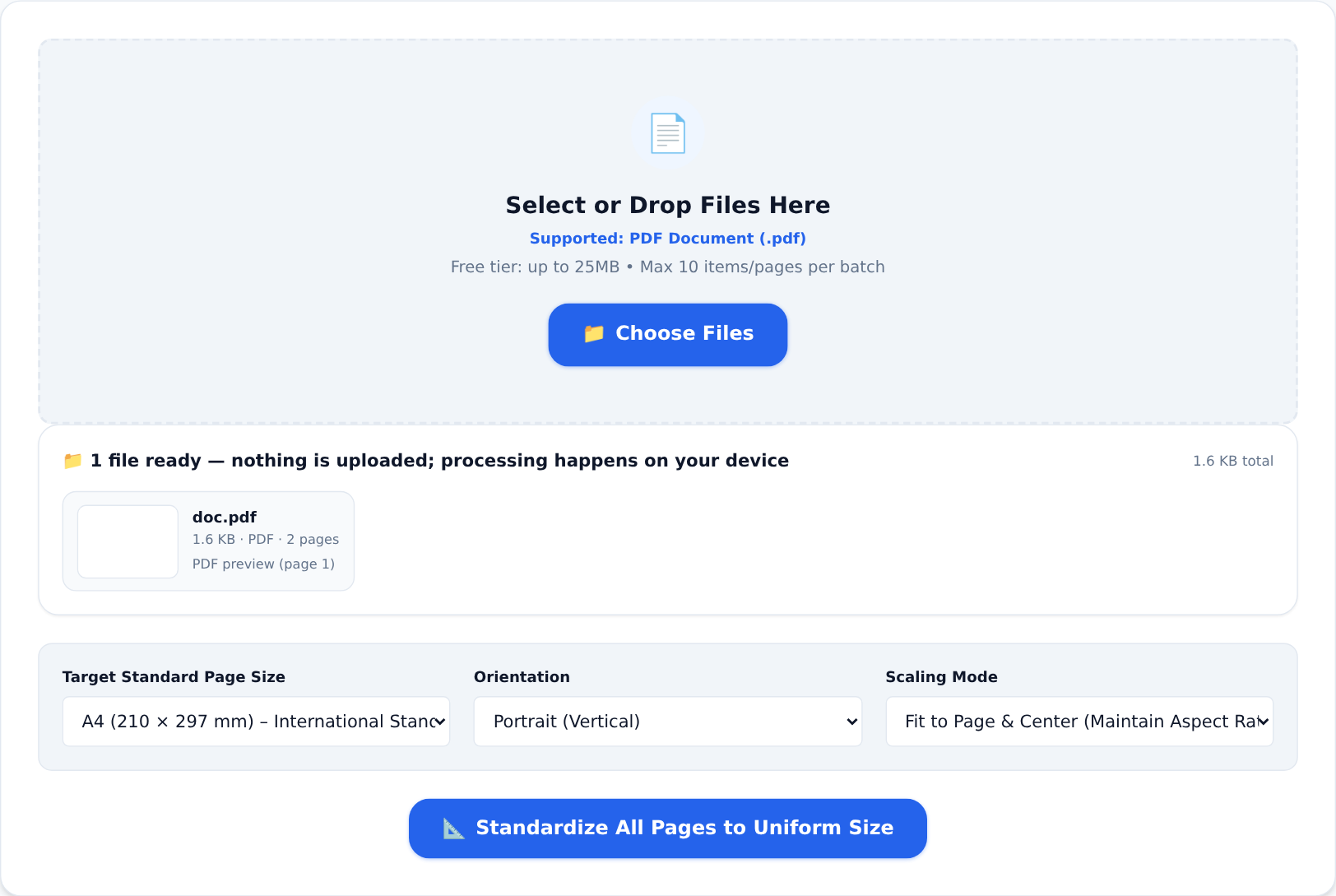
- Still too big? Standardise the page sizes with Standardize PDF Sizes, or send only the pages the recipient needs using Split PDF.
- Scans that will not shrink? Run PDF to Text with OCR instead and send the extracted text — sometimes the recipient only needed the words.
- Sensitive document? Browser-based processing means the file never left your device, so there is no upload leak and no "please delete my file" email to send.
When to stop compressing
If a file is going to a print shop, an archive, or a portal that demands original quality, send the original. Compression is for sharing and storage, not for master copies. Keep the untouched original in your own folders and treat the compressed file as the copy you email around — that single habit prevents almost every compression regret.